
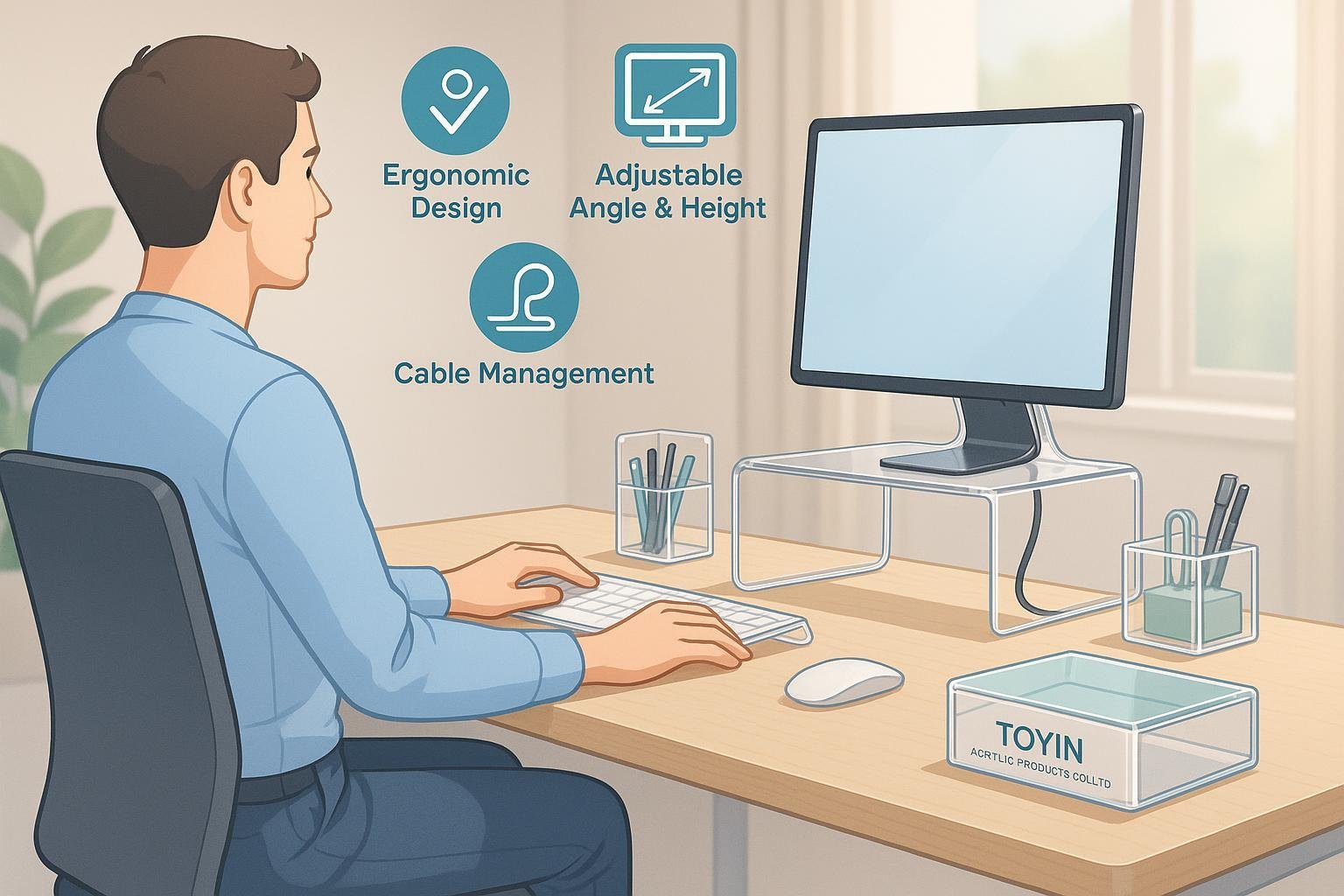
Your first step towards a comfortable, organized, and inspiring desktop.
Índice
- Introduction: Why Rethink Your Workspace?
- VESA Basics – What Does ‘VESA’ Mean?
- Why Choose a VESA-Compatible Stand? Major Benefits
- Checking Compatibility: Is Your Monitor VESA-Ready?
- Types of VESA Stands & Material Choices (Why Acrylic Shines)
- Step-by-Step Installation Guide
- Workspace Optimization & Customization
- Real-Life Transformations & Case Studies
- Milestone Quiz & Self-Assessment
- Common Troubleshooting & FAQ
- Further Resources & Toyin Product Gallery
1. Introduction: Why Rethink Your Workspace?
Have you ever experienced neck pain, cluttered cables, or struggled for desk space while working or studying? You’re not alone. Upgrading your monitor setup with a VESA-compatible stand is one of the most effective—and affordable—ways to transform your workspace for comfort and style.
In this guide, we’ll take you from zero knowledge to confident mastery, step-by-step. Whether you work from a home office, student desk, creative studio, or run a retail brand, this guide will help you:
- Understand what the VESA standard actually is
- Unlock ergonomic and organizational benefits
- Confidently select and install the right stand for your needs
- Explore advanced customization with premium acrylic solutions
Ready to optimize your workspace? Let’s begin!
2. VESA Basics – What Does ‘VESA’ Mean?
VESA stands for Video Electronics Standards Association. The VESA standard defines the mounting pattern—that means the arrangement and spacing of four holes—on the back of monitors or TVs so they can be securely attached to stands, arms, or walls.
Glossary Box:
- VESA Pattern: The rectangle formed by holes on the back of your monitor (usually measured in millimeters: e.g., 75x75mm, 100x100mm).
- Mounting Adapter: Plate or device that lets non-VESA monitors use VESA mounts.
- Torque: Rotational force—important when mounting heavier screens.
Analogy: Think of the VESA pattern like a universal plug for monitors—it ensures mounts from any brand fit if the hole spacing matches.
For more details, see the VESA official standard and Ergotron’s VESA Guide.
3. Why Choose a VESA-Compatible Stand? Major Benefits
Here’s what makes VESA-compatible stands a workspace game-changer:
Ergonomic Comfort
- Adjustable height, tilt, and swivel to match your posture
- Reduces neck, shoulder, and back strain
- Promotes straight posture for longer productivity
Space Saving & Tidiness
- Elevates your monitor, freeing up huge desk area beneath
- Straightens cables and simplifies cable management
- Makes multi-monitor setups possible without crowding
Flexibility & Future-Proofing
- Easily upgrade, reposition, or swap displays
- Suits various work scenarios—sitting, standing, collaborative
Customization & Aesthetics
- Wide choice of stand styles and materials for a personal touch
- Premium options, like custom acrylic stands and organizers, offer both durability and visual flair for brands, pros, and home users
Real Data: Offices adopting VESA arms report up to 30% reduction in desk clutter and significant drops in neck pain (Ergotron workspace survey).
4. Checking Compatibility: Is Your Monitor VESA-Ready?
Before you buy a stand, you need to check:
- Does my monitor have VESA holes? Most modern monitors do; older/specialty models may need an adapter.
- What is the VESA pattern size? (E.g., 75x75mm or 100x100mm)
- What is the monitor weight? Ensure any stand supports your monitor’s weight.
Step-by-Step Compatibility Check
Step 1: Look for 4 small screw holes in a square or rectangle on the back of your monitor. Step 2: Measure the horizontal and vertical distance in millimeters. (Tip: A standard ruler works—mark the numbers down!) Step 3: Check your monitor’s weight (often listed on the box/manual or manufacturer site). Step 4: If no VESA holes, consider an adapter. Some suppliers offer custom acrylic adapters for non-standard monitors.
Downloadable Worksheet: Printable VESA Compatibility Checklist (PDF)
Common Beginner Mistakes:
- Not measuring carefully—leads to wrong stand selection
- Ignoring weight limits—results in loose/sagging setups
For full video walkthrough, check this TikTok tutorial.
5. Types of VESA Stands & Material Choices (Why Acrylic Shines)
VESA stands and arms come in several styles:
- Fixed desk stands (basic height/tilt)
- Adjustable arms (multi-angle, extendable)
- Wall mounts (space-maximizing)
- Multi-monitor setups (side-by-side, stacked)
Material Comparison Table
| Material | Durabilidad | Aesthetics | Customization | Common Uses |
|---|---|---|---|---|
| Steel | ★★★★★ | Industrial | Medium | Heavy-duty offices, IT setups |
| Aluminum | ★★★★☆ | Modern | Medium | Home/office arms, wall mounts |
| Acrílico | ★★★★☆ | Premium | High | Branded displays, home, art |
Why Choose Acrylic?
- Crystal-clear finish for modern workspaces
- Superior customization—from single pieces to branded multi-displays
- Lightweight but sturdy—perfect for flexible desk layouts
- Offers a unique, minimalist designer look
You can find a variety of custom acrylic stands, organizers, and trays for a truly personalized workspace from specialty producers.
Consejo: Acrylic stands are ideal if you’re upgrading for style, branding, or home visibility. Ask about bespoke solutions for your space.
6. Step-by-Step Installation Guide
Tools You’ll Need:
- Philips-head screwdriver
- Proper-length screws (usually M4, included with most stands)
- Measuring tape
- Cable ties/clips
- (Optional) Stud finder (for wall mounts)
Installation Steps
- Prepare the workspace: Clear your desk; keep tools handy.
- Attach the VESA plate to your monitor: Screw the plate into the VESA holes—hand-tighten, do not overtighten.
- Secure the stand/arm to your desk or wall: Follow included instructions; use clamps or screws as specified.
- Mount the monitor onto the stand/arm: Align plate to bracket; lock in place.
- Adjust monitor position: Set height, tilt, and angle for your eye level.
- Manage cables: Use ties/clips for a tidy look.
Troubleshooting Sidebar:
- Stand won’t support monitor? Double-check pattern and weight limits.
- Plate won’t fit? You may need an adapter—consider custom acrylic solutions from a trusted supplier.
- Monitor droops? Confirm screw tightness and adjust arm tension.
For advanced visual guidance, watch Mount-It!’s video step-by-step.
7. Workspace Optimization & Customization (Featuring Acrylic Solutions)
Once you’ve installed your stand, it’s time to personalize and optimize!
Cable Management
- Use cable organizers and trays to keep wires out of sight
- Premium acrylic cable trays and desk organizers can add clarity and style
Multi-Monitor Magic
- Mount two or more monitors for side-by-side workflow
- Custom stands can adapt to any desk—check out specialty multi-display options
Branding & Aesthetics
- Elevate your brand with logo-etched acrylic stands (perfect for luxury, creative, and retail sectors)
- Custom acrylic solutions can be tailored to any color, shape, or brand requirement
Workspace Transformation Worksheet: Printable Before/After Analysis
8. Real-Life Transformations & Case Studies
Case Study 1: Home Office Makeover
Lily switched from a fixed stand to an acrylic adjustable mount—her desk went from cluttered chaos to sleek minimalism, with cables routed through an organizer. She reports greater comfort and daily tidiness.
Case Study 2: Small Business Branded Setup
A boutique used logo-etched acrylic VESA arms in their retail display. The result? Better screen placement, more striking aesthetics, and increased customer engagement.
Case Study 3: Student Workspace
Marcus installed a dual-monitor setup using a multi-arm acrylic stand and organizer. He was surprised at the quick install time (under 20 minutes) and the clear boost in desk space.
Before/After Gallery: For inspiration and transformation images, explore resources provided by display product specialists online.
9. Milestone Quiz & Self-Assessment
Ready to check your learning?
Quick Quiz:
- What does ‘VESA’ stand for?
- How do you measure a VESA mounting pattern?
- Name two ergonomic benefits of VESA-compatible stands.
- List three materials used for VESA stands; what’s special about acrylic?
- What’s a common mistake beginners make during installation?
Self-Assessment Checklist:
- [ ] I’ve located and measured my monitor’s VESA holes
- [ ] Selected a stand that fits my monitor and workspace needs
- [ ] Installed the stand safely and checked all screws/cables
- [ ] Organized my workspace for tidiness and comfort
- [ ] Explored customization options (such as acrylic accessories)
If you missed a step, revisit the relevant section or reach out for help!
10. Common Troubleshooting & FAQ
Q: My monitor doesn’t have VESA holes—am I out of luck?
- Not at all! Use a compatible adapter. Custom acrylic adapters are available for many models from specialty suppliers.
Q: How can I maximize safety installing my stand?
- Hand-tighten screws, don’t overtighten; confirm correct weight/pattern; watch a video walkthrough.
Q: What if I want a unique color or branded display solution?
- Many suppliers specialize in bespoke acrylic stands for a customized look.
Q: Can I mount multiple monitors at once?
- Yes! Many VESA stands/arms are built for dual/triple displays. Always check weight and desk specs first.
More troubleshooting answers: Seek advice and community input from Reddit r/StandingDesk community and manufacturer support pages.
11. Further Resources & Product Gallery
Recommended Learning Links:
Downloadables & Checklists:
Contact Experts for Support and Customization:
Ready to take the next step? Explore VESA-compatible acrylic accessories or contact expert support from specialty suppliers for tailored solutions.
Final Thoughts: Your Ergonomic, Organized, and Stunning Workspace Awaits!
Making the leap to a VESA-compatible stand unlocks ergonomic health, decluttered space, and the chance to personalize your desk. With world-class acrylic products and this beginner’s guide, you have everything you need to transform your workspace—today. Stay encouraged, start small, and enjoy the comfort and style of a professional setup!
Written by workspace optimization experts.
Feel free to share your before/after photos and learning journey using #WorkspaceWithAcrylicSolutions

 Español
  English
  Français
  Русский
  Deutsch
  Português
  日本語
日本語