
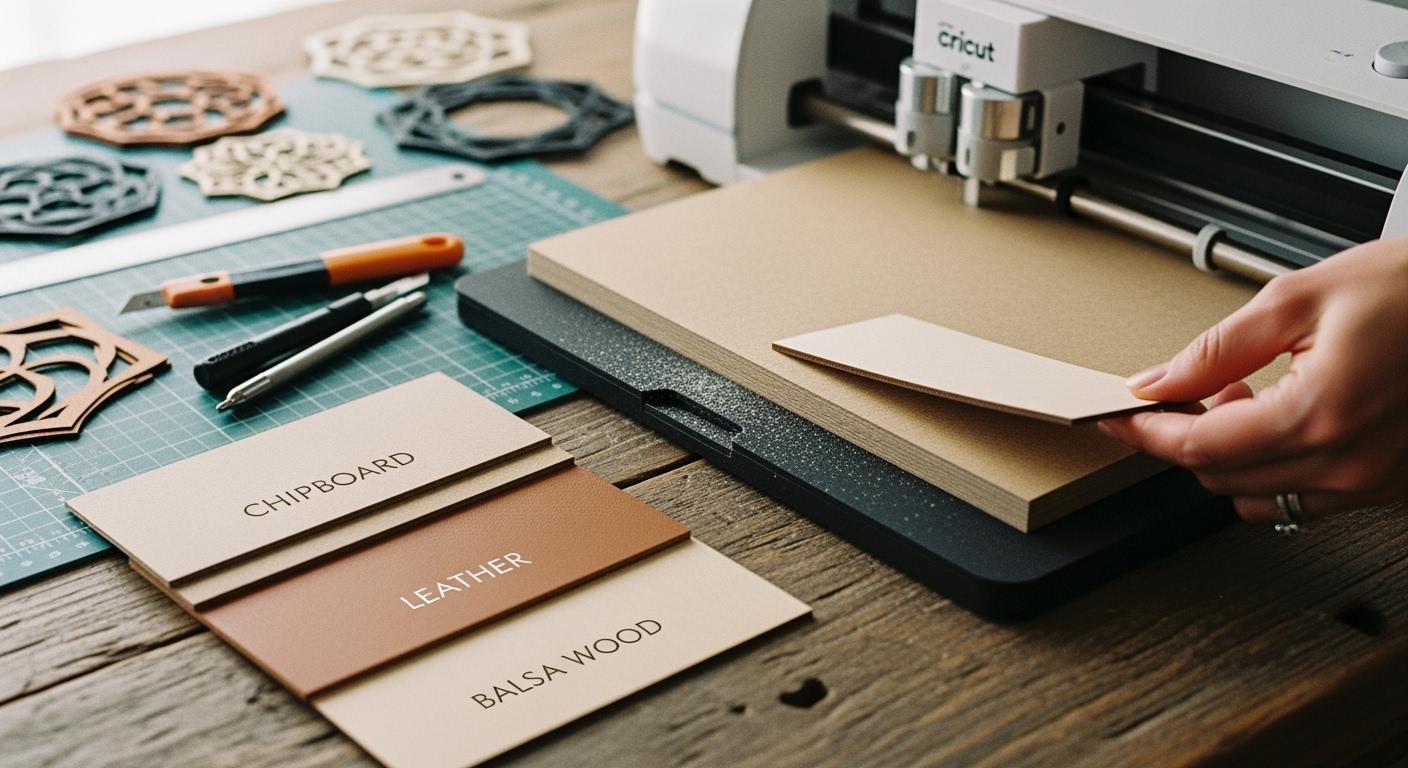
You want to know the thickest material a Cricut can cut. The Cricut Maker handles up to 2.4mm (about 0.094 inches), making it the best choice for tough projects. Different Cricut models cut different thicknesses. Check the table below for quick reference:
| Cricut Model | Maximum Cutting Thickness |
|---|---|
| Cricut Explore Air | 2.0mm |
| Cricut Maker | 2.4mm |
| Cricut Venture | N/A |
Understanding maximum thickness helps you select the right materials and Cricut settings. You avoid mistakes and make sure your thickest material fits your creative plans.
Cricut Model Thickness Limits
Cricut Maker Maximum Thickness
When you use the cricut maker, you get the highest cutting power among all cricut machines. The cricut maker can cut materials up to 2.4 mm thick. This means you can work with tough materials like mat board, leather, and basswood. The cricut maker uses special blades, such as the Knife Blade, to handle these thicker materials. You can see the difference in cutting limits in the table below:
| Cricut Model | Maximum Thickness |
|---|---|
| Cricut Explore | 2.0 mm |
| Cricut Maker | 2.4 mm |
The cricut maker stands out because it can cut a wider variety of materials. You can use it for more advanced projects that need extra strength and precision.
Cricut Explore Air and Venture
The cricut explore air gives you a maximum cutting thickness of 2.0 mm. You can cut many materials, but you need to choose the right blade for each one. The cricut explore air works well for paper, vinyl, and light chipboard. It cannot handle the same thick materials as the cricut maker. The cricut venture is not designed for thick materials, so you should use it for thinner projects. Always check the material thickness before you start your project.
Tip: Use the correct blade for your cricut explore air or cricut maker. The right blade helps you get clean cuts and protects your machine.
Factors Affecting Cutting Thickness
The cricut machine’s ability to cut thick materials depends on several things. The type of blade you use makes a big difference. The Knife Blade works best for thick and dense materials. The cutting force of your cricut also matters. The cricut applies pressure to the blade, which helps it cut through tough surfaces. Material density affects how well your cricut can cut. Harder materials need more force. If you use the wrong blade or try to cut something too thick, your cricut may not finish the cut. Always check your material and blade before you start. This helps you avoid mistakes and keeps your cricut working well.
Thickest Material Cricut Can Cut

When you want to work with the thickest material your cricut can handle, you need to know which materials and machines work best. The cricut maker stands out because it can cut a wide range of thick materials. You can use it for projects that need strength and durability. The Adaptive Tool System in the cricut maker helps you cut with precision, even when you use the thickest material like balsa wood or matboard. Many crafters try to push their machines to the limit, so knowing the right settings and tools is important.
Kraft Board
Kraft board is a popular choice when you want a sturdy base for cards, boxes, or models. You can cut kraft board up to 2.4 mm thick with the cricut maker and cricut maker 3. This thickness gives you a strong finished product. The table below shows which models work with the thickest kraft board:
| Thickest Kraft Board | Compatible Models |
|---|---|
| 2.4 mm | Cricut Maker, Cricut Maker 3 |
You should use the Knife Blade for the best results. This blade slices through the thickest material with clean edges. Always secure your kraft board to a strong mat before you start cutting. This step keeps your material from shifting and helps your cricut make precise cuts.
Tip: Use a brayer to press the kraft board onto the mat. This tool helps you get a smooth, even surface for cutting.
Chipboard and Balsa Wood
Chipboard and balsa wood let you create sturdy crafts, models, and signs. The cricut maker can cut heavy chipboard up to 2.0 mm thick and balsa wood up to 2.4 mm (3/32 inch). You need the Knife Blade for both materials. This blade is strong enough to handle the thickest material without breaking or tearing.
| Material | Maximum Thickness | Blade Required |
|---|---|---|
| Balsa Wood | 3/32″ (2.4 mm) | Knife Blade |
| Heavy Chipboard | 2.0 mm | Knife Blade |
You should always check the thickness of your chipboard or balsa wood before loading it into your cricut. If you use a material that is too thick, your machine may not finish the cut. For best results, use the recommended thickness and blade. This approach helps you avoid jams and incomplete cuts.
Note: The cricut maker uses the Adaptive Tool System. This system gives you more control and helps you cut the thickest material with accuracy.
Leather and Fabric
You can use your cricut to cut thick leather and fabric for custom projects like wallets, patches, or appliqués. The cricut maker 3 and cricut explore 3 both cut thick leather and fabric up to 2.4 mm (3/32 inch). The Knife Blade works best with the cricut maker 3, while the Deep Point Blade fits the cricut explore 3.
| Cricut Model | Blade Type | Maximum Thickness |
|---|---|---|
| Cricut Maker 3 | Knife Blade | 2.4mm (3/32″) |
| Cricut Explore 3 | Deep Point Blade | 2.4mm (3/32″) |
You should always use a strong grip mat for thick leather and fabric. This mat holds your material in place and helps your cricut cut the thickest material without slipping. If you want to cut thick leather, make sure it is not too stiff or uneven. Smooth, flat pieces give you the best results.
Tip: Test a small piece of your material before starting your main project. This step helps you check if your cricut can handle the thickest material you plan to use.
When you know the limits of your cricut, you can choose the thickest material for your project with confidence. The right blade and model help you get clean, strong cuts every time.
Tools and Blades for Thick Materials
When you want to cut thick materials with your cricut, you need the right tools. The blade and mat you choose make a big difference in your results. Using the correct blade helps you cut cleanly and keeps your cricut working well.
Knife Blade
The knife blade is the best choice for cutting thick and dense materials. You can use it with the cricut maker to cut chipboard, balsa wood, and even leather. The knife blade makes it easy to cut materials up to 2.4mm thick. Cricut recommends this blade for chipboard and other tough projects. You should always use the knife blade when you want to cut the thickest materials your cricut can handle.
Tip: The knife blade works best when you use the cricut maker. Always check that your material fits the thickness limit before you start to cut.
Deep Point Blade
The deep point blade helps you cut materials that are not as thick as those for the knife blade but still need extra strength. You can use it to cut magnet sheets, felt, faux leather, and stamp material. The deep point blade can cut up to 1.5mm thick. This blade fits both the cricut explore and cricut maker machines.
| Maximum Thickness | Best Suited Materials |
|---|---|
| 1.5mm | Magnet, Chipboard, Stamp Material, Felt, Faux Leather |
You should use the deep point blade when you want to cut materials that are too thick for the fine point blade but do not need the knife blade.
Mat Selection
Choosing the right mat helps your cricut cut thick materials without slipping. Cricut offers four types of mats: LightGrip (blue), StandardGrip (green), StrongGrip (purple), and FabricGrip (pink). For thick and heavy materials, you should use the StrongGrip mat. This mat holds your material in place while your cricut cuts through it. Always cover your mat with the clear film when you finish to keep it clean. Replace your mat if it stops gripping or gets damaged.
Note: Use tools like the spatula and scraper to remove your cuts and keep your mat in good shape.
When you use the right blade and mat, your cricut can cut thick materials with ease. This helps you get the best results for every project.
Cutting Thick Materials: Tips and Troubleshooting
Settings and Multiple Passes
You can get the best results when you set your material settings correctly. Always check the recommended pressure and number of passes for the material you want to cut. For thick materials, you often need to increase the pressure and use more passes. The table below shows some common settings:
| Material Type | Pressure | Passes | Blade Type |
|---|---|---|---|
| Light Chipboard 0.37 mm | 285 | 2 | Fine-Point Blade |
| Acetate | 319 | 2 | Fine-Point Blade |
| Gel Sheet | 335 | 4 | Deep-Point Blade |
| Magnetic Sheet 0.6 mm | 358 | 6 | Deep-Point Blade |
You can also see how pressure and passes change for different materials in this chart:
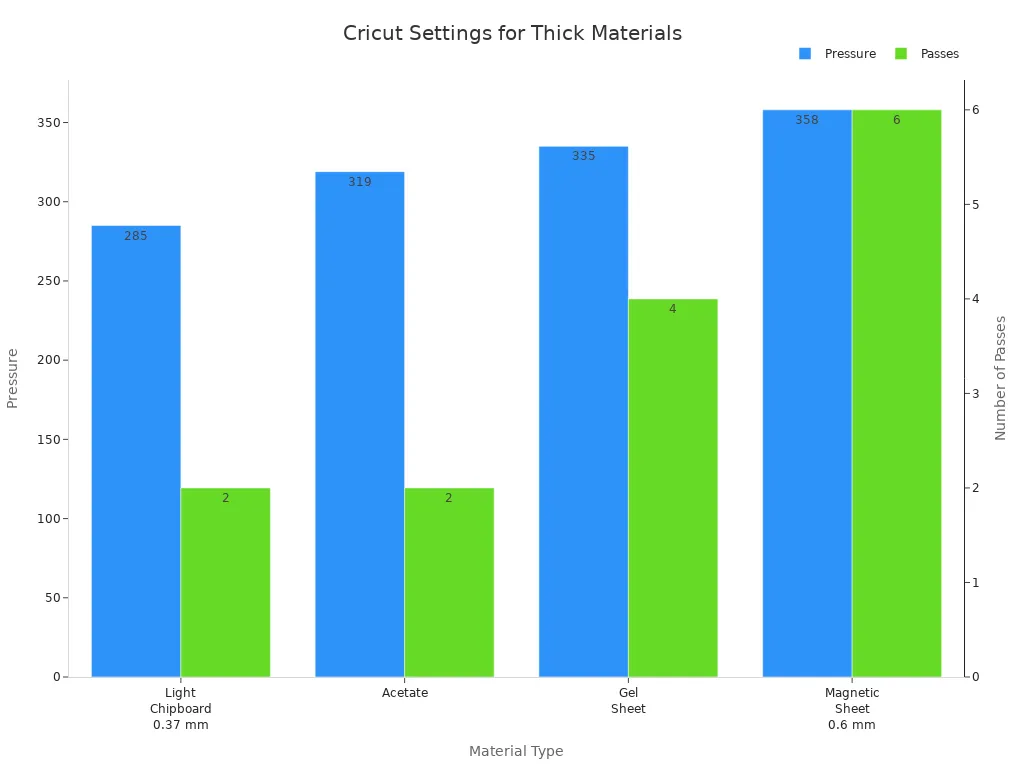
If you notice incomplete cuts, try increasing the pressure or adding more passes. Always test your settings before starting your main project.
Material Preparation
Good preparation helps you get clean cuts every time. Follow these steps before you start:
- Cut your material to fit the mat.
- Iron out wrinkles if needed.
- Press the material flat on the mat with no bubbles.
- Pick the right mat—use a strong grip mat for thick materials.
- Place the material only on the sticky part of the mat.
Tip: Clean your mat often and use sharp blades. This keeps your cuts smooth and prevents problems.
Troubleshooting Issues
Sometimes, you may face problems when you cut thick materials. Here are some common issues and solutions:
- If the blade gets stuck or the machine blinks red, check for uneven material thickness. Power off the machine and move the carriage if needed.
- If you see incomplete cuts, increase the pressure or enable multiple passes.
- For tearing or rough edges, lower the pressure and use a new blade.
- If some areas do not cut, check if the mat is sticky enough and clear any debris.
| Symptom | Solution |
|---|---|
| Incomplete cuts on straight edges | Increase pressure by 4 units |
| Incomplete cuts on curves only | Increase pressure by 2 units or enable multi-pass |
| Tearing on intricate details | Decrease pressure by 2-4 units and enable multi-pass |
| Rough edges everywhere | Replace blade, then decrease pressure by 2 units |
| Inconsistent cutting (some areas complete, others not) | Check mat stickiness and environmental factors |
You can avoid most problems if you follow the right material settings and prepare your materials well. Remember, the thickest material your cricut can cut will need extra care and the correct setup.
You can cut thick materials with a Cricut Maker or Cricut Maker 3. These models handle over 300 materials, including wood and leather. See the table below for a quick comparison:
| Model | Maximum Thickness | Material Compatibility | Speed and Performance |
|---|---|---|---|
| Cricut Maker | Thick materials | Over 300 materials including wood, leather, etc. | Precise cuts, versatile, compatible with 13 tools |
| Cricut Maker 3 | Thicker materials | Same as Maker, plus Smart Materials support | Cuts up to 2x faster, stronger motor, 10x cutting force |
You should always use the right blade and settings. This prevents wasted materials, gives you clean cuts, and matches each material’s needs.
Remember to keep your workspace clean, handle blades with care, and never leave your machine unattended. Try new projects safely and enjoy creating with your Cricut!
FAQ
What happens if you try to cut material thicker than your Cricut’s limit?
Your Cricut may stop or show an error. The blade can get stuck or break. You might damage your machine. Always check the material thickness before you start.
Can you use the Knife Blade with all Cricut machines?
No, you can only use the Knife Blade with the Cricut Maker and Cricut Maker 3. Other models do not support this blade.
How do you know which mat to use for thick materials?
Use the StrongGrip (purple) mat for thick or heavy materials. This mat holds your material in place and helps you get clean cuts.
Do you need to calibrate your Cricut before cutting thick materials?
Yes, you should calibrate your Cricut before using the Knife Blade. Calibration helps your machine cut with better accuracy.
Can you cut multiple layers at once with a Cricut?
You should cut one layer at a time. Cutting multiple layers can cause uneven cuts or damage your blade.
See Also
Understanding Gauge and Thickness in Acrylic Products
Exploring Extruded Acrylic Sheets: Definition and Uses
Design Insights and Materials for Acrylic Stand Tables
CNC Routing and Cutting: Definitions and Key Applications
Cast Acrylic Sheets: Definitions, Properties, and Their Uses


 Français
  English
  Русский
  Deutsch
  Español
  Português
  日本語
日本語